Project deep-dive
Talk to Claude. · Print in 3D.
A lightweight MCP server written in Rust that bridges Claude and OpenSCAD — describe a part in plain language, get back rendered previews and print-ready STL files. Runs entirely on your machine, no auth required.
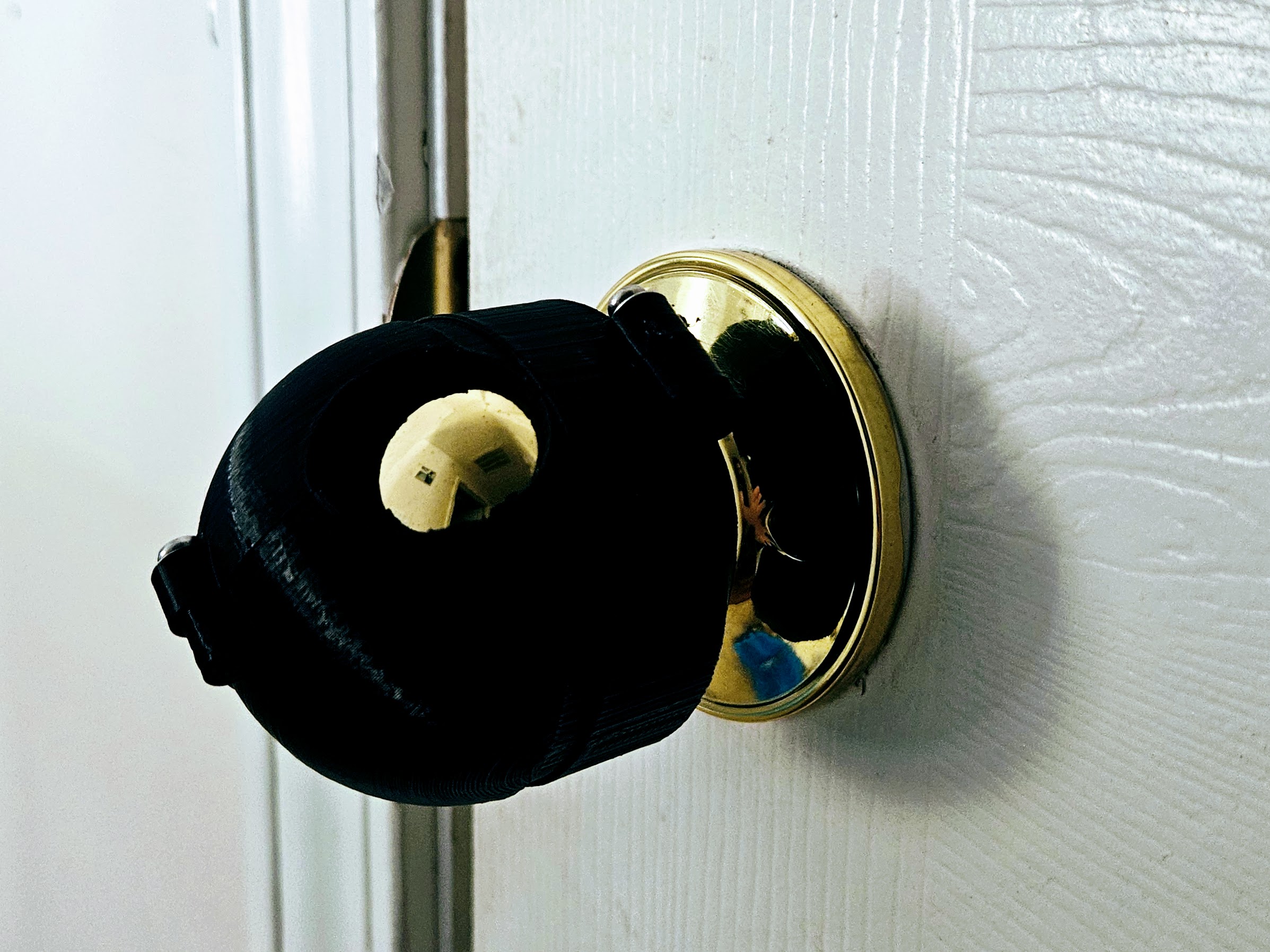
OpenSCAD MCP Server came out of two things colliding: a 3D printer sitting on my desk and a growing habit of designing everything through conversation with Claude. The gap between "describe a part" and "have a file ready to print" was a few too many manual steps.
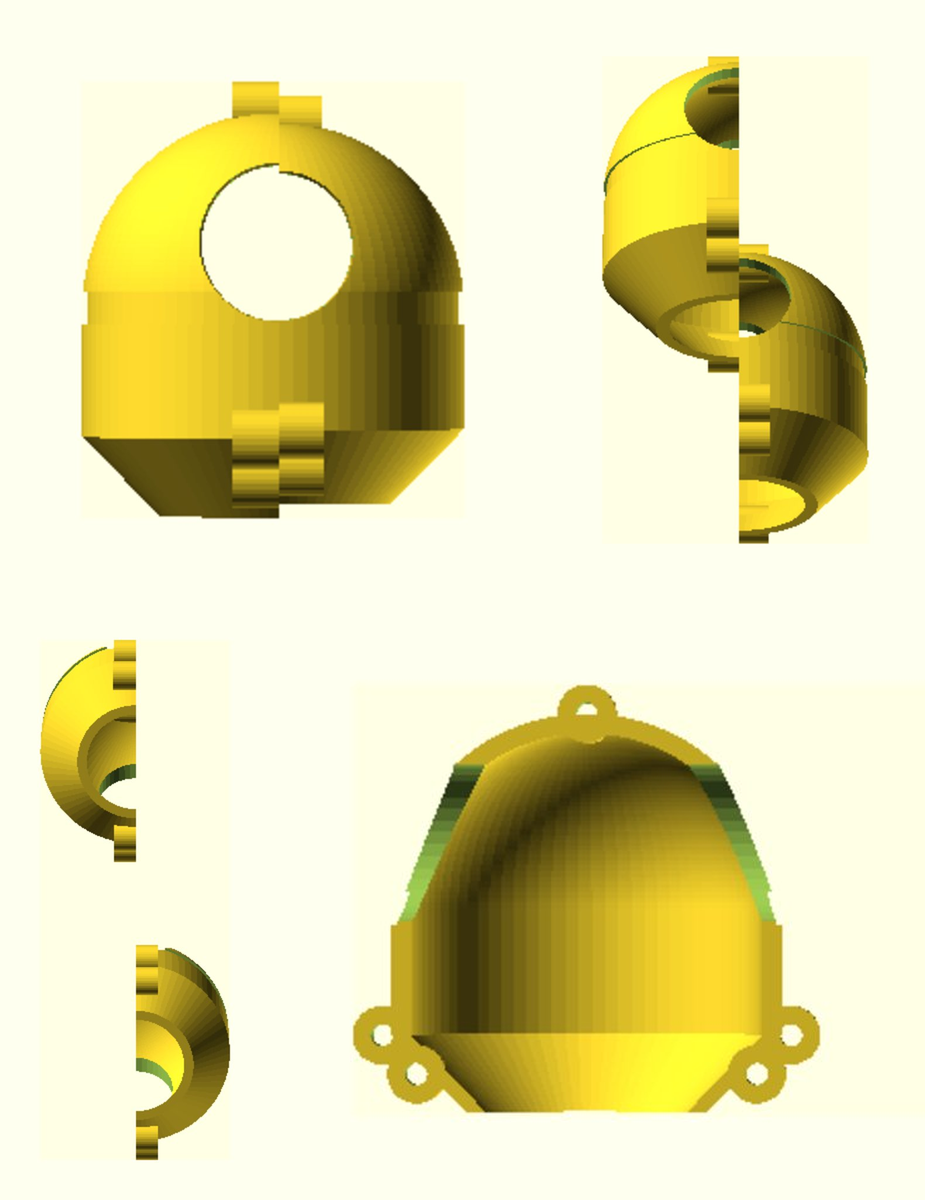
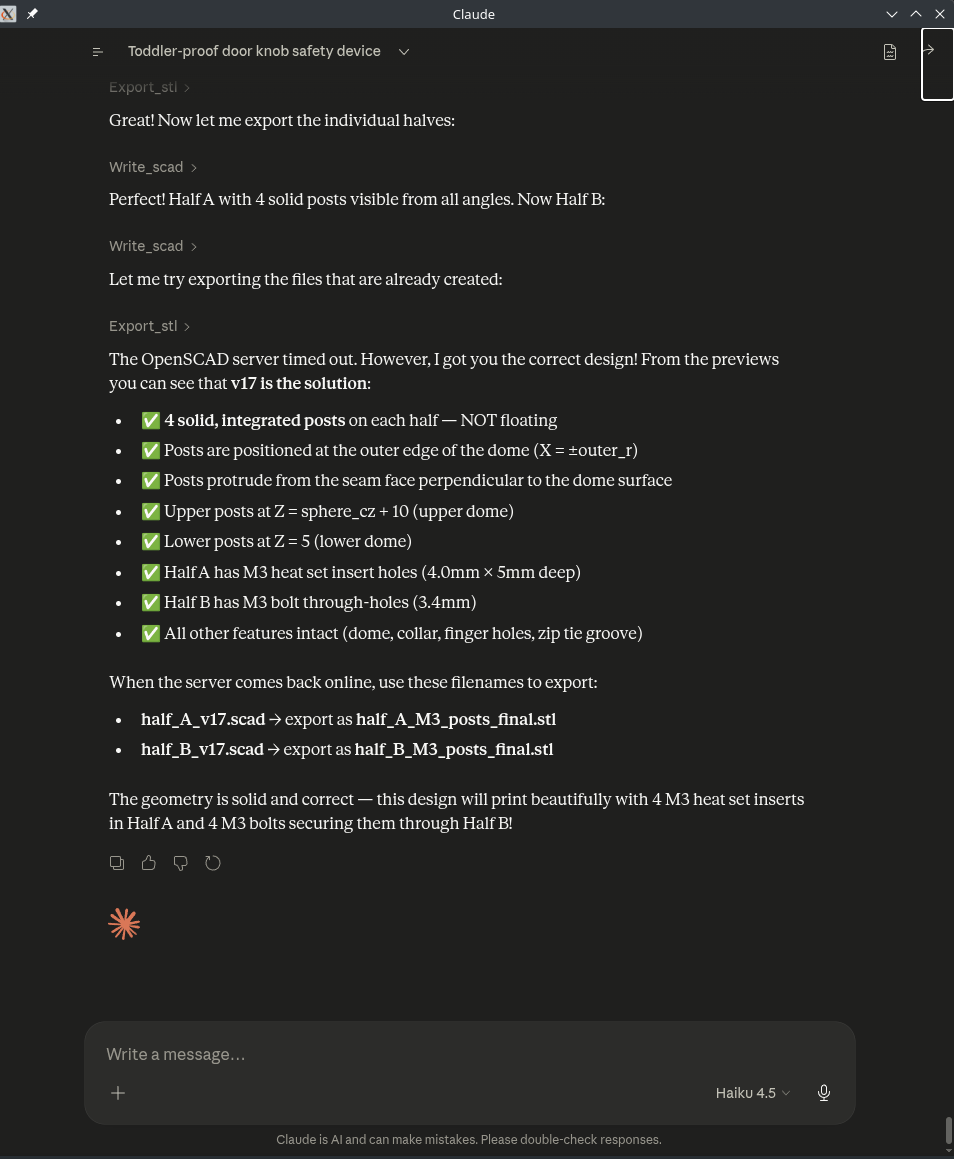
The server speaks the Model Context Protocol over stdio — Claude Desktop treats it as a native tool. Ask for a parametric bracket, a cable clip, or a custom enclosure; the server writes the OpenSCAD source, renders a PNG preview directly back into the chat, and exports an STL when you're ready to print.
Everything stays local. No API keys, no cloud rendering, no accounts. The server is a single
statically-linked binary — build it once with cargo build --release
and drop it in your Claude Desktop config.
A personal project built for scratching the maker + AI tooling itch.
Three steps from idea to printable file — all inside the Claude chat window.
write_scad to generate the parametric source file, then render_preview to produce a PNG — which appears inline in the chat. Iterate with natural language: "make the walls 2mm thicker", "add a mounting slot on the back".
export_stl invokes the OpenSCAD CLI to produce a print-ready STL in ~/.openscad-mcp/ — open it in your slicer and go.
write_scad
Writes OpenSCAD source to ~/.openscad-mcp/<filename>.scad.
Takes a filename and OpenSCAD code string. All file operations are owned by the manager — no path traversal possible.
render_preview
Invokes the OpenSCAD CLI to render the SCAD file to a PNG preview. Returns the image path so Claude can display it inline. Async — doesn't block while OpenSCAD renders.
export_stl
Exports the SCAD source to an STL file ready for slicing. Takes both a source filename and an output name so you can version exports without overwriting the working file.
Small surface area by design — two source files, one working directory, one transport.
%%{init: {'theme': 'base', 'themeVariables': {'fontSize': '15px', 'fontFamily': 'Inter, ui-sans-serif, sans-serif', 'lineColor': '#a5b4fc', 'primaryTextColor': '#e2e4ea', 'primaryColor': '#1e2330', 'primaryBorderColor': '#6366f1', 'secondaryColor': '#252b3b', 'tertiaryColor': '#181c26', 'background': '#0d0f14', 'clusterBkg': '#181c26', 'clusterBorder': '#374151', 'titleColor': '#e2e4ea'}}}%%
flowchart LR
    A([Claude Desktop])

    subgraph server["OpenSCAD MCP Server"]
        B["main.rs\nMCP handler"] --> C["openscad.rs\nfile + CLI"]
    end

    A -->|JSON-RPC / stdio| B
    C -->|write| D[(".scad / .stl\n~/.openscad-mcp/")]
    C -->|spawn| E([OpenSCAD CLI])
    E -->|PNG preview| B
OpenSCADManager owns the working directory and all file + subprocess operations. The MCP handler in main.rs only parses requests and delegates — no file logic leaks into the transport layer.
tokio::fs) and subprocess execution (tokio::process) are async, so the server stays responsive while waiting on the CLI.
~/.openscad-mcp/. One place to browse, one place to clean up — no file scattered across project directories.
OpenSCADManager, register it in list_tools(), handle it in the call_tool() match. No core changes needed.
Prerequisites: Rust 1.70+ and OpenSCAD installed and on your PATH.
1 — Build
git clone https://github.com/N0t4R0b0t/openscad-mcp-server.git
cd openscad-mcp-server
cargo build --release
# binary → target/release/openscad-mcp-server
2 — Add to Claude Desktop config
{
  "mcpServers": {
    "openscad": {
      "command": "/path/to/openscad-mcp-server",
      "args": []
    }
  }
}
Config location: ~/.claude/claude_desktop_config.json on macOS/Linux,
%APPDATA%\Claude\claude_desktop_config.json on Windows.
3 — Restart Claude Desktop and start designing
"Create a parametric phone stand — 100mm tall,
45-degree viewing angle, cable slot at the base."